Creating an in-person exam
Published on: 2022-10-15 by Edufide
Instructors can use Assign2 to grade exams or assignments completed by students on paper
in class. The streamlined grading workflows in Assign2 can be a time-saving method
for delivering in-person, long-form assessments or exams.
Contents:
Creating PDF assessments:
The starting point for this type of assessment is to have the questions prepared
in an existing PDF template file.
With that in hand, instructors should begin by
adding an Assign2 tool to their course,
ensuring that the ‘Grade’ points selected matches what the eventual points
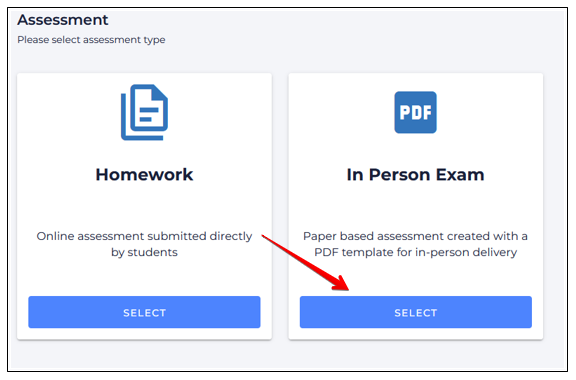
total will be for the assessment. Once the tool has been added, click the
tool link in the course and select In Person Exam:
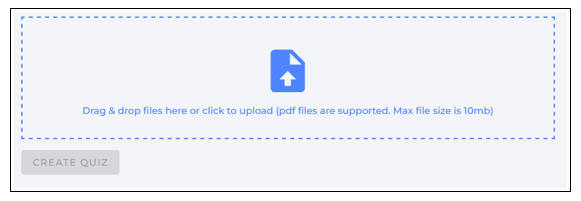
Next, upload the PDF version of your exam file by drag-dropping or browsing.
This file should contain all the questions and space for students to complete
their answers:
Once uploaded, the PDF is opened in a preview mode that first shows the cover
page for the eventual student copies:

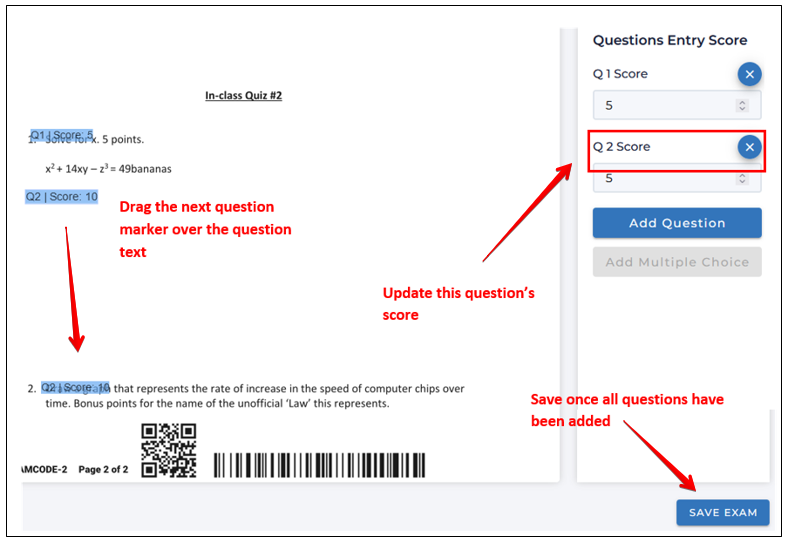
Scrolling down, instructors will then create the question placeholders to be
linked to the Assign2 grading interface. To add a question, click
Add Question then drag-and-drop the blue question marker over
top of the question in the underlying template, then enter the point-value for
the question to match the assessment item:

Then repeat this process for every question in the assessment and once
complete, scroll down and click Save.
Printing and Distributing Assessments to Students:
To provide an assessment to students, instructors must now download and print copies
for their students. When printing, instructors should:
select their printer’s option to “Fit to page” or “Scale to fit - Print entire
image” to ensure that the complete Assign2 barcode gets added to each page; ANDensure they print the exam in portrait orientation.
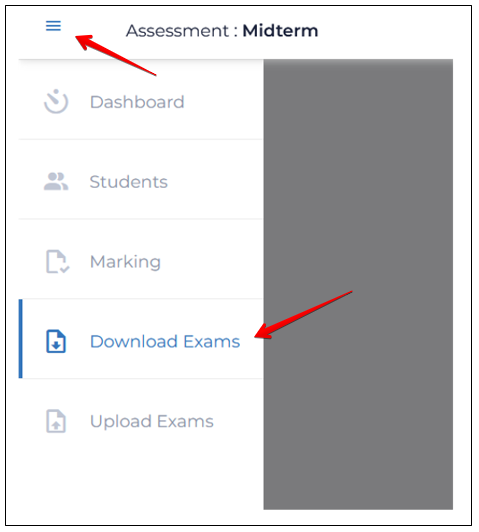
From the dashboard page, open the left nav menu using the icon at the top left,
then select Download exams:
Click Generate extra exams:

On the ‘Generate Exams’ overlay, specify a file prefix and enter the number of
exams required for printing, then click Generate:
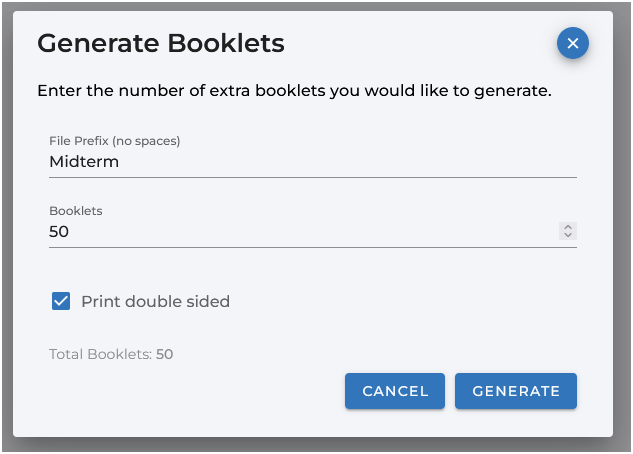
This will produce a single zip file that can be downloaded and printed in a
single job, creating the specified number of copies. This operation can be
performed as many times as required - eg. for students in different sections,
for students completing deferred exams, etc. Using a different file prefix for
these cases can be useful in keeping the various printed versions separate.
Note that the printed copies generated from exam file can only be used once -
the barcode printed on each exam is how the system identifies and collates scanned,
completed copies and associates them with the students who have completed them):

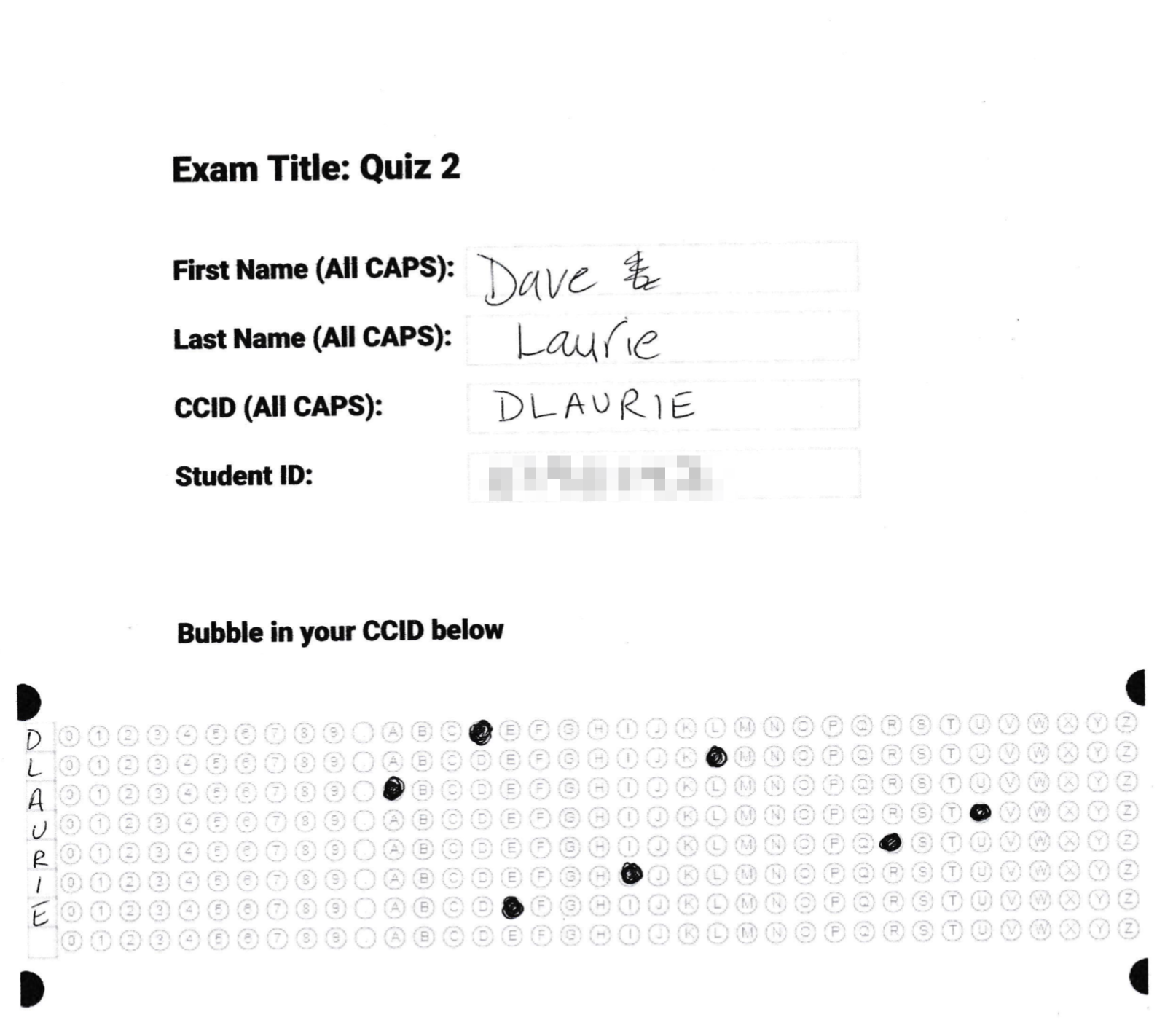
Once printed, these exams would now be given to students in-class who will
fill in their name, and student ID number on their copy and complete
their assessment:
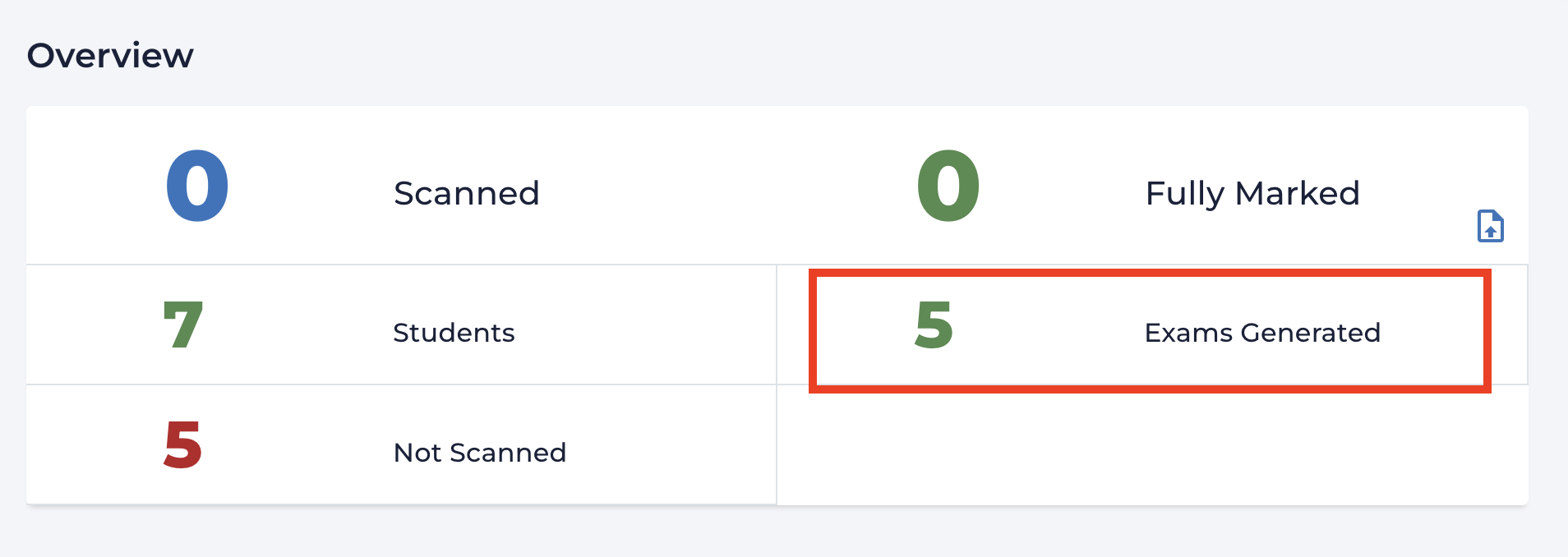
Once exams have been created and generated these counts will be added to the
assessment dashboard to the right of the count of students in a course:
Scanning and Uploading Assessments:
Once the student’s completed work has been collected, instructors will need to scan
and upload the paper copies for grading:
Scanning can be completed using standard office printer/scanners including
continuous feed devices that output single PDF files.
Scanning should occur at 200dpi resolution or higher and should be done on a darker setting.
The resulting PDF file containing any number of individual student copies
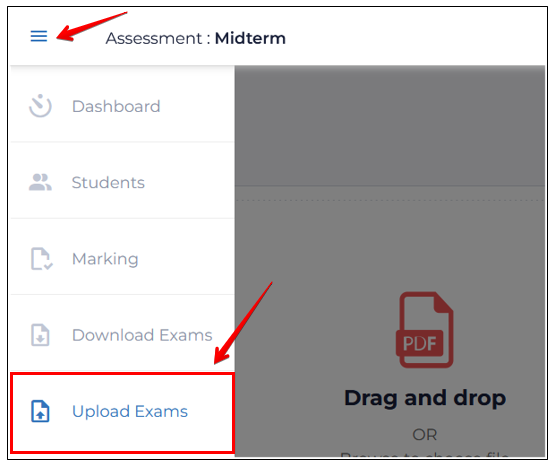
can be uploaded by opening the left nav menu via the icon at top left, then selecting
Upload exams:
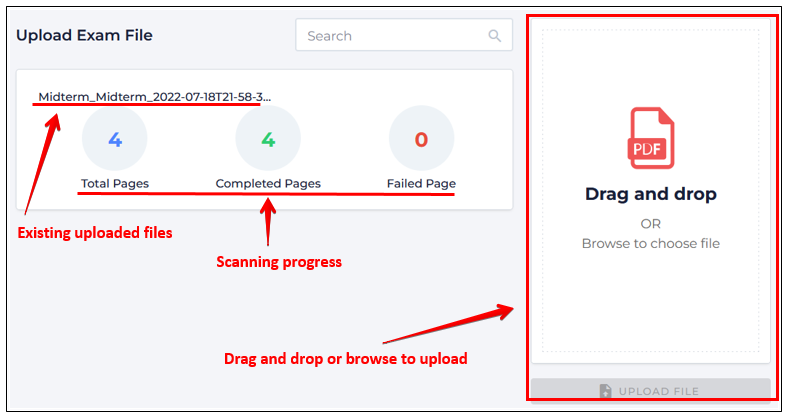
PDF files can be drag-dropped (or selected by browsing) through the dialog on
the right. Please note: this process can be completed as many
times as required based on the different scanned files. Once Upload
is clicked, files are added to the files list on the left and the system begins
processing them with progress tracked in the center:
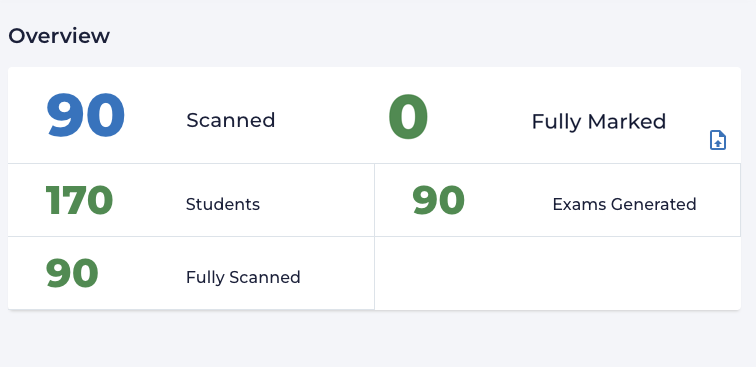
Once the upload has finished scanning, the upload counts will be added to
‘Fully Scanned’ counts on the dashboard:
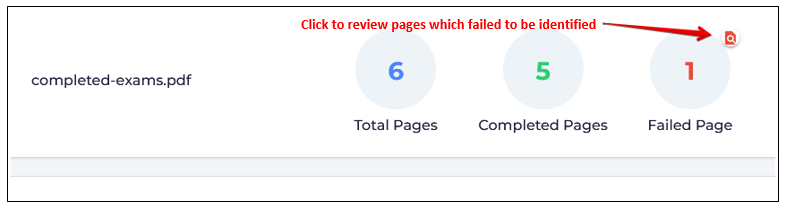
Scanning problems will be identified either from:
the Upload Exam File tab - from the Upload Exam File
tab, open the failed pages interface by clicking on the document icon:
or from the main Dashboard - from the Dashboard,
open Partially Scanned:
.png)
Dealing with Partial Exam Uploads:
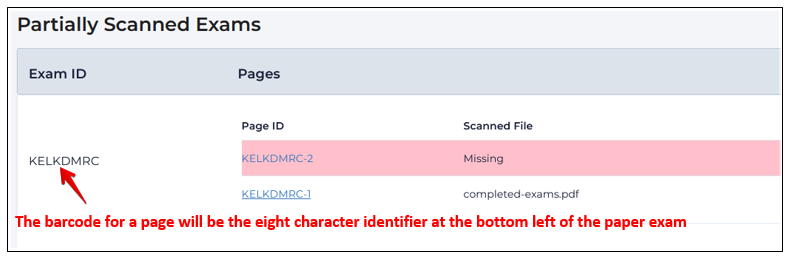
Images of any scanned but unmatched problem pages can be reviewed by clicking their
link to try and resolve any issues manually by clicking the Partially Scanned
icon. This page list all of the scanned pages for any incomplete or partial exams with a list
of all pages within each specific exam also displayed, allowing the identification of any
missing pages. Clicking on the page name will display a specific page if further review is
necessary. You may have to go back to the original paper exam to verify the student and the
associated exam:
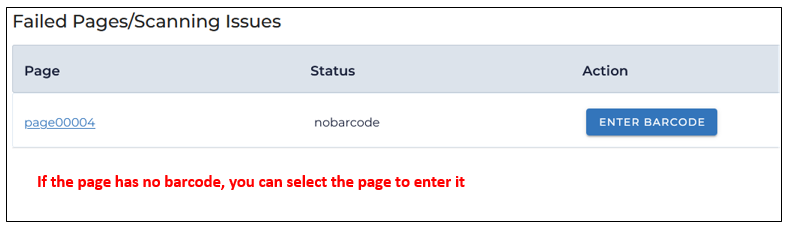
If a barcode is missing or obscured you can view the page by clicking its link, and
enter the barcode by clicking Enter Barcode:
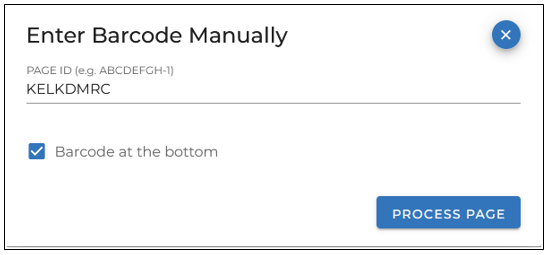
Enter the barcode, and click Process Page:
Assigning Exams to Students:
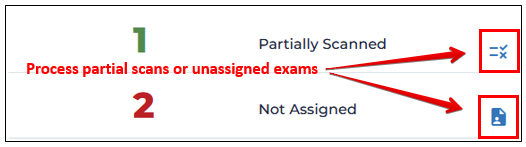
If students don’t correctly bubble in their Student ID, their exams can be manually
associated with their student ID by clicking the link for
Not Assigned:
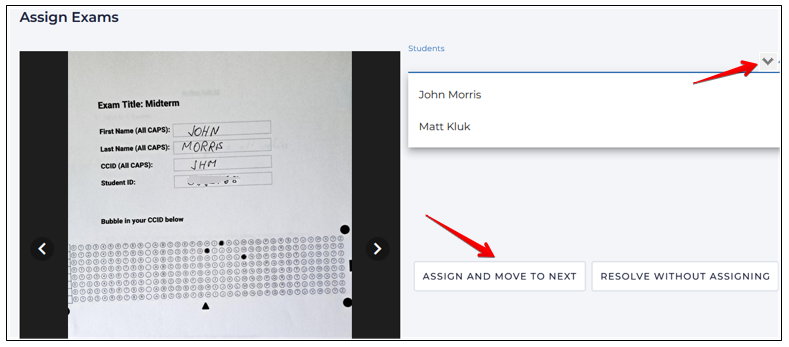
To link unassigned exams to particular students, the completed exam is
displayed in a preview window. If an exam author can be identified, select
their name from the dropdown list and click Assign Exam:
Auto Resolve:
Rather than manually assigning each unassigned exam one by one, Assign2 includes an
Auto Resolve feature that can automatically match unassigned exams
to students in bulk.
Once all exams for the assessment have been scanned and uploaded, click the
Auto Resolve button at the top of the Unassigned Exams page:
Assign2 will process all remaining unassigned exams in parallel using a
combination of techniques:
Bubble sheet ID scanning: An ML model reads the student ID
bubbles filled in on the answer sheet. Multiple confidence thresholds are
applied to maximise the number of successful matches.OCR text recognition: If the bubble scan does not produce a
match, Assign2 uses optical character recognition to read the student’s
written First Name, Last Name, and Student ID from the top portion of the
scanned page. It then attempts to match by student ID first, then by exact
name, and finally by approximate name (allowing for minor spelling variations).
When the process completes, a notification appears confirming how many exams
were successfully resolved. Any exams that could not be automatically matched
will remain in the unassigned list for manual assignment.
Note: Auto Resolve should be triggered only after all exams for the
assessment have been scanned and uploaded, to give the system the best chance of
finding a match for every student.
Marking Student Exams:
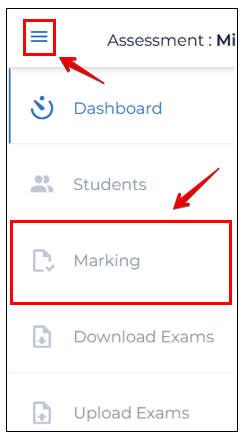
The Assign2 grading interface is accessed through the top left nav tray by clicking
Exam Marking. Any exams that have ANY of their
pages scanned will show up in the grading interface. The grading functions and
workflows are the exact same as for online Assign2 assessments:
If multiple choice questions have been added to the students answer
sheets, these are scored automatically.
Dashboard Overview:
The dashboard allows instructors to see their grading progress at a glance and overall
details about their assessment:
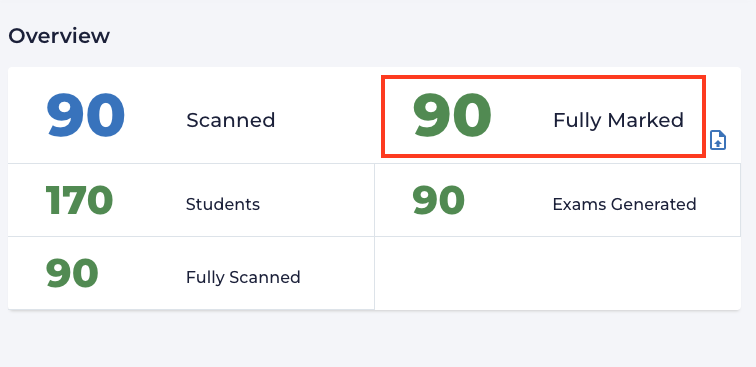
Specific count details:
Scanned
Count of submitted scanned exams
Marked
Running total of marked exams
Students
Number of students listed in the LMS course
Exams Generated
Number of exams generated for printing
Fully Scanned (only appears when exams are scanned)
Number of complete scans matched to students
Partially Scanned (only appears if these exist)
Incomplete exams where pages were missed in scanned or the barcode could not be read
Not assigned (only appears if these exist)
Exams that cannot be matched up to a student in the course