Managing students in Assign2
Published on: 2022-10-18 by Edufide
The Students page is the place to check the roster for an assessment and manage individual students. From here, you can refresh the roster, find a student, review their files and activity, and—on an online assessment—upload work or set a different submission deadline for that student.
Contents:
Using the Student Roster
Open Students from the assessment navigation. The table shows each student’s First Name, Last Name, User ID, Assigned Exam, and Mark. A student without a recorded score is shown as No Score. For paper assessments, Assigned Exam identifies the individual exam assigned to that student; a student without one is shown as Exam Not Assigned.
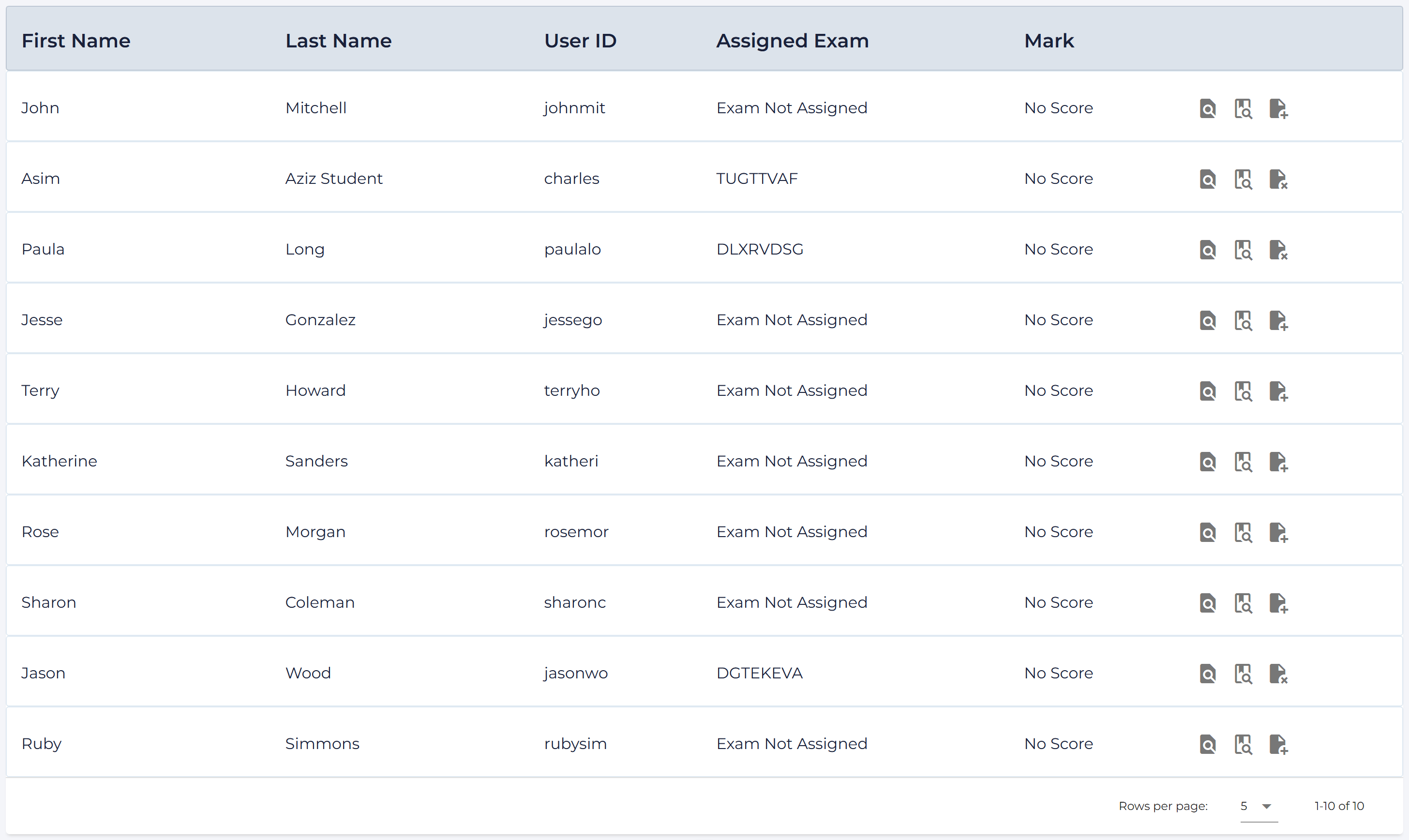
Use the Search field to narrow the list by student name. When your LMS roster has changed, select Update Users From LMS to retrieve the current membership list. In an Assign2 course that uses a CSV roster instead of an LMS connection, this button is labelled Import Learners from CSV.
For an online assessment, Filter Overridden limits the roster to students with an individual submission-date override.
Viewing Files and Activity
Each student row includes icon actions. Hover over an icon to see its label:
- View uploaded files opens the files available for that student’s assessment.
- View activity logs opens that student’s recorded assessment activity, with the most recent entries first.
Select Assessment Logs below the table when you need the activity history for the assessment as a whole rather than for one student.
Supporting a Student in an Online Assessment
Online assessments include two additional actions in each student’s row: Upload Files on behalf of student and Override due date for student. Use the upload action when you need to add a student’s work yourself; it opens that student’s submission area.
Set an individual submission deadline
To give one student a different deadline, select Override due date for student, choose the date and time in Override Due Date, select Override submission date, then choose SAVE SETTINGS.
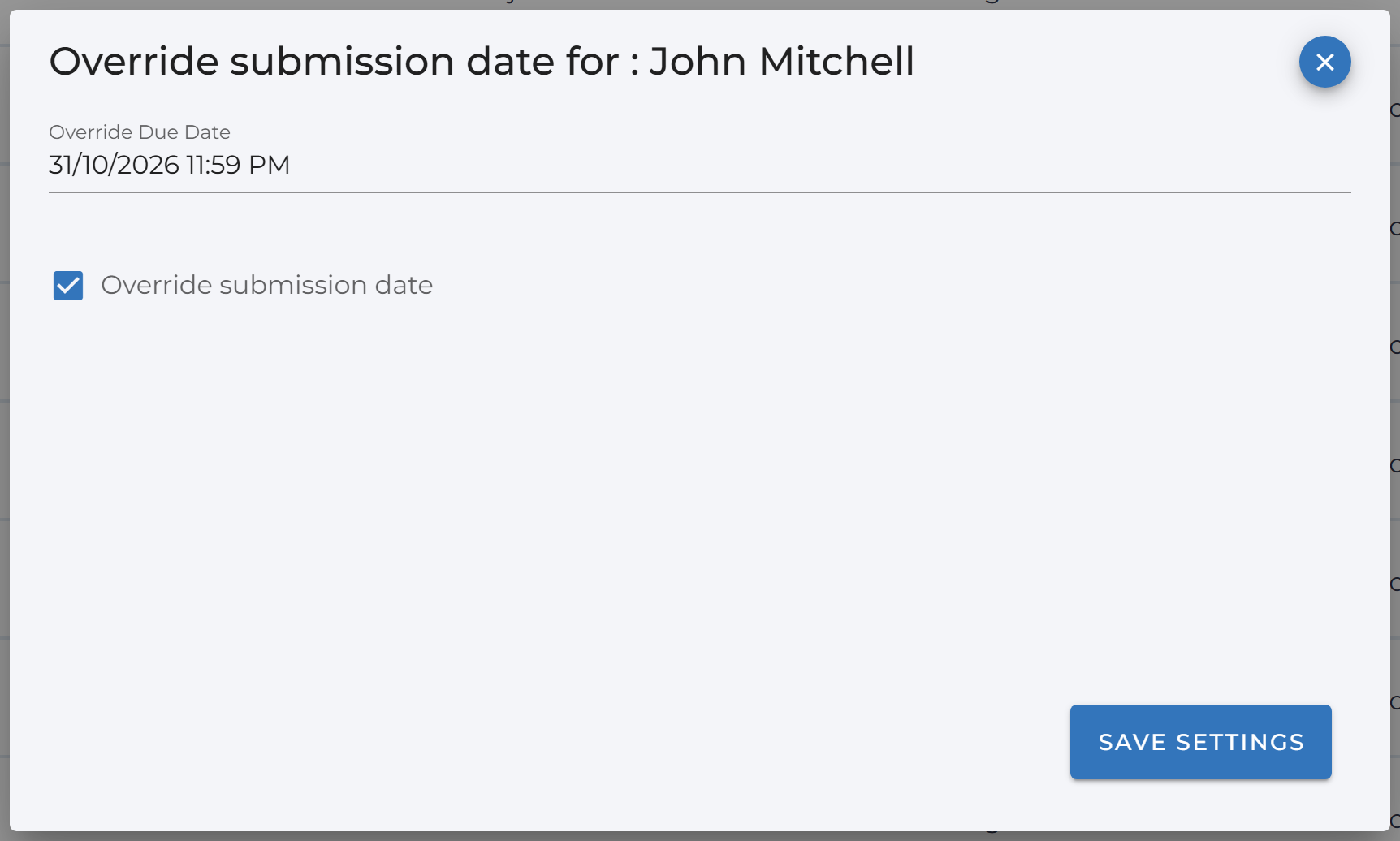
Important: choosing a date and time alone does not turn on the individual deadline. Select Override submission date before saving. The calendar icon for that student is highlighted once an override is active.
This changes the deadline for that student only. To change the assessment-wide deadline or late-submission settings, use the assessment settings instead; see Managing assignments in Assign2.
Assigning a Paper Exam
For an in-person paper assessment, the row actions include either Assign Exam or Unassign Exam. Select Assign Exam, enter the student’s individual EXAM ID, and select Assign Exam again to confirm. Once an exam is assigned, use Unassign Exam if you need to remove that assignment.
Individual file uploads and due-date overrides are online-assessment actions, so they do not appear for paper assessments.