Replacing proprietary bubblesheets with Assign2
Published on: 2022-10-19 by Edufide
Assign2 can handle both long-form and multiple-choice questions, making it a powerful and cost-effective alternative to traditional bubble sheet systems. This article covers everything from setting up a multiple-choice exam through to the newer partial-credit scoring, manual review, and item-analysis features.
Contents:
Setting Up a Multiple-Choice Exam
When creating your exam as a PDF Assessment (an in-person, paper-based exam), you can designate a page as a multiple-choice bubble sheet. Multiple-choice regions are set up a little differently from written questions:
- Multiple-choice questions must go on their own page — a page can either hold written questions, or a single multiple-choice region, but not both.
- On the last page of your template, use the Add Multiple Choice button (instead of Add Question) to draw the bubble-sheet region.
- The question box is labelled MCQ <n> | Score: <maxscore> so it’s easy to tell apart from written questions while laying out your template.
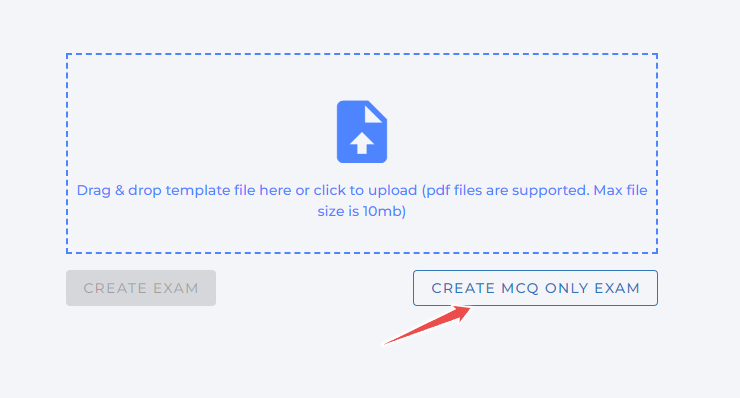
If your exam is entirely multiple-choice, you don’t need to design a template at all — from the Upload Exams page click Create MCQ only exam and Assign2 will generate a ready-made bubble-sheet template for you automatically:
You can print the exam booklet directly from Assign2 (Download Exams), which will include formatted areas for students to mark their answers, and the answer key panel described below.
Entering the Answer Key
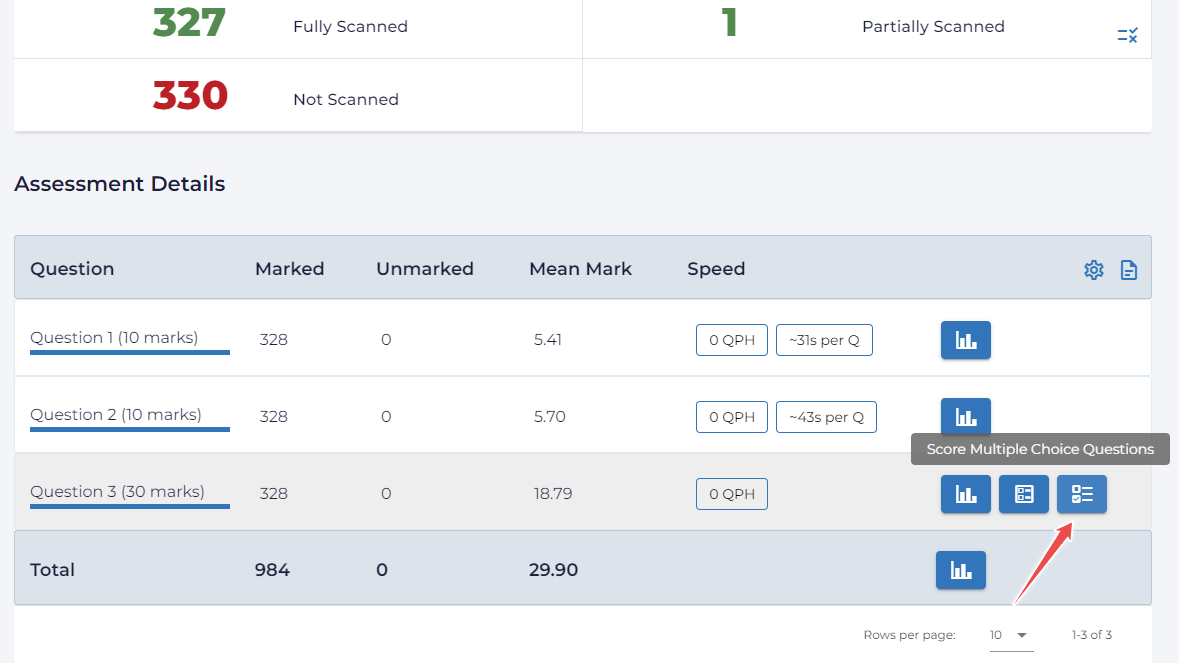
Once your MCQ page has been created, open the assessment Dashboard and find the multiple-choice question in the Assessment Details table. Three extra action buttons appear on its row:
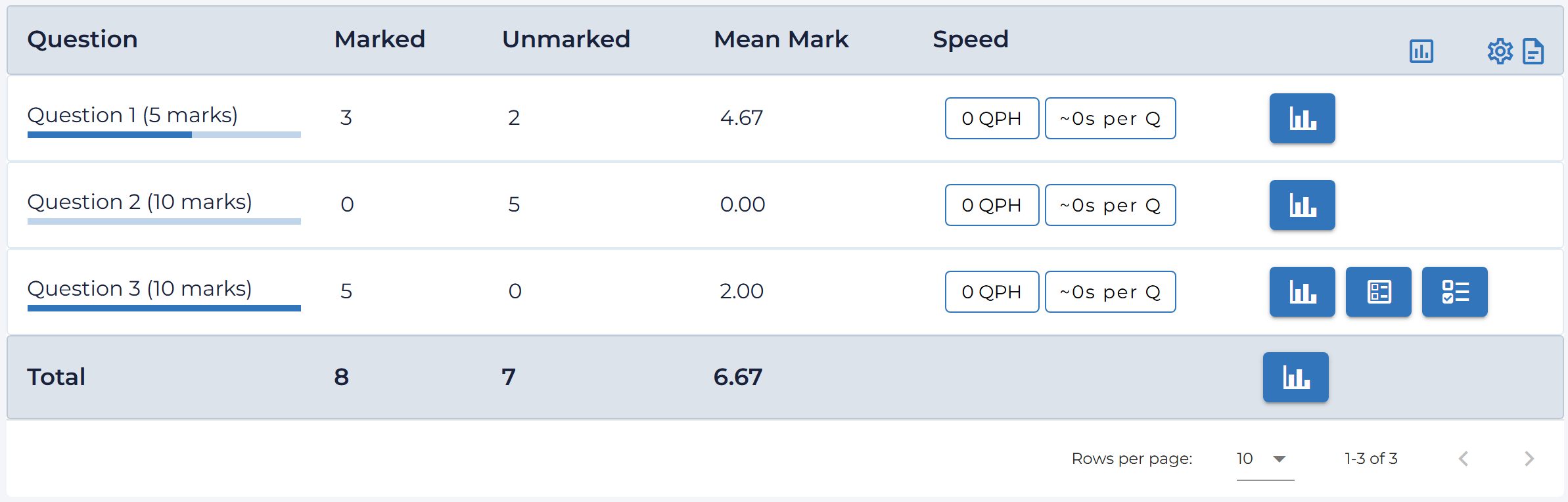
- Edit Multiple Choice Questions (ballot icon) — opens the answer-key page.
- Score Multiple Choice Questions (checklist icon) — opens the processing dialog described in Scanning and Automatic Grading.
- View question’s histogram chart (bar-chart icon) — opens a score histogram with a link into item analysis.
The answer-key page supports up to 100 questions (numbered 001–100), each with five options, A through E. Assign2 supports two scoring modes, chosen with the Question type switch at the top of the page:
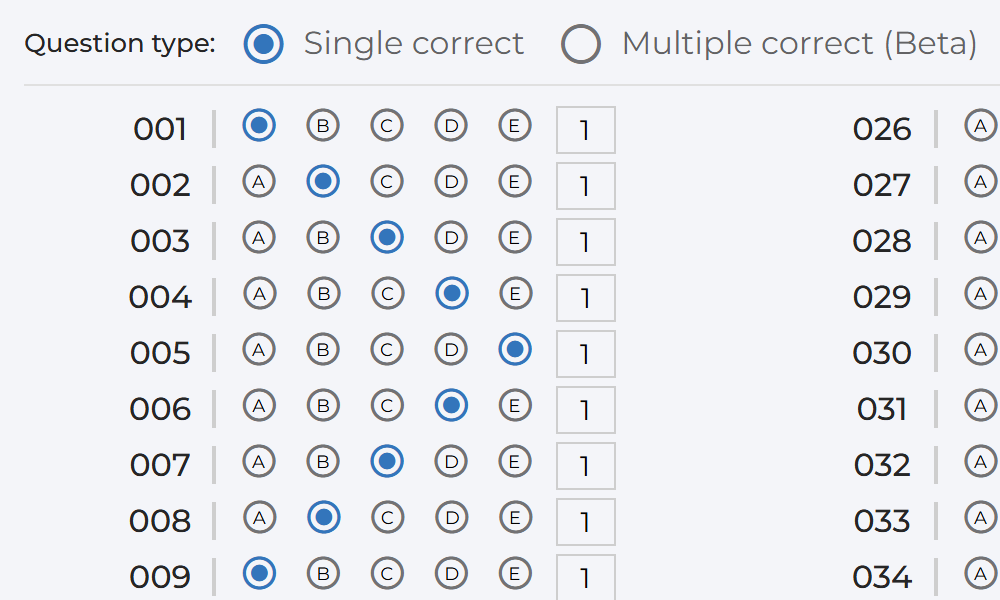
In Single correct mode — the classic bubblesheet behaviour — you select the one correct option (A–E) for each question and set its point value. Selecting an option automatically defaults the score to 1 if you haven’t set one yet. Leave a question’s options blank to skip it entirely; the answer key must not have gaps between configured questions, or Assign2 will warn you before saving.
Click Save once your key is complete.
Multiple Correct Answers & Partial Credit (Beta)
Switching Question type to Multiple correct (Beta) replaces the single answer/score per question with a grid of five independent score boxes — one per option:
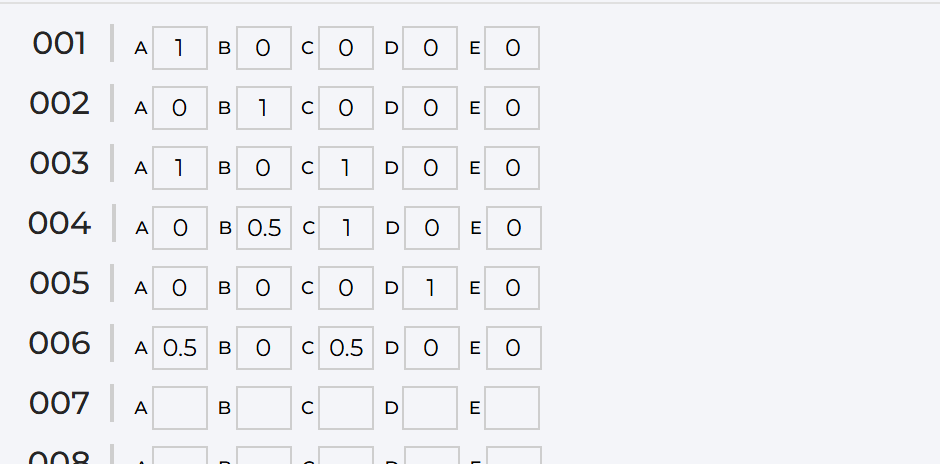
This lets you reward more than one acceptable bubble, and by different amounts. For example, if B is fully correct and D is a partially-acceptable answer, you could enter 1 under B and 0.5 under D — a student who bubbles D receives half credit automatically. Leave an option’s box blank to award zero for that bubble.
How the total is calculated: for each question, the maximum value entered across its five option boxes becomes that question’s contribution to the paper’s total possible points — not a separate “question score” field (there isn’t one in this mode). A student’s earned points for the question are whatever value is set under the option they actually bubbled. The final grade is (sum of earned points ÷ sum of question maximums) × the question’s overall Score set when you created the MCQ region.
Because the scanner still reports only the single darkest bubble it detects per question, this mode is best described as multiple acceptable answers with one recorded response, rather than true “select all that apply” grading. If a student genuinely fills in more than one bubble on a question, that paper is automatically routed to manual review instead of being auto-scored — see the next sections. This feature is marked Beta: keep an eye on your item statistics after your first multi-correct exam and reach out to support if a report looks off.
Scanning and Automatic Grading
After the exam, scan the completed papers just like any other in-person exam and upload them from Upload Exams. Once scanning has finished, return to the Dashboard and click Score Multiple Choice Questions on the MCQ row to open the Process MCQs dialog:
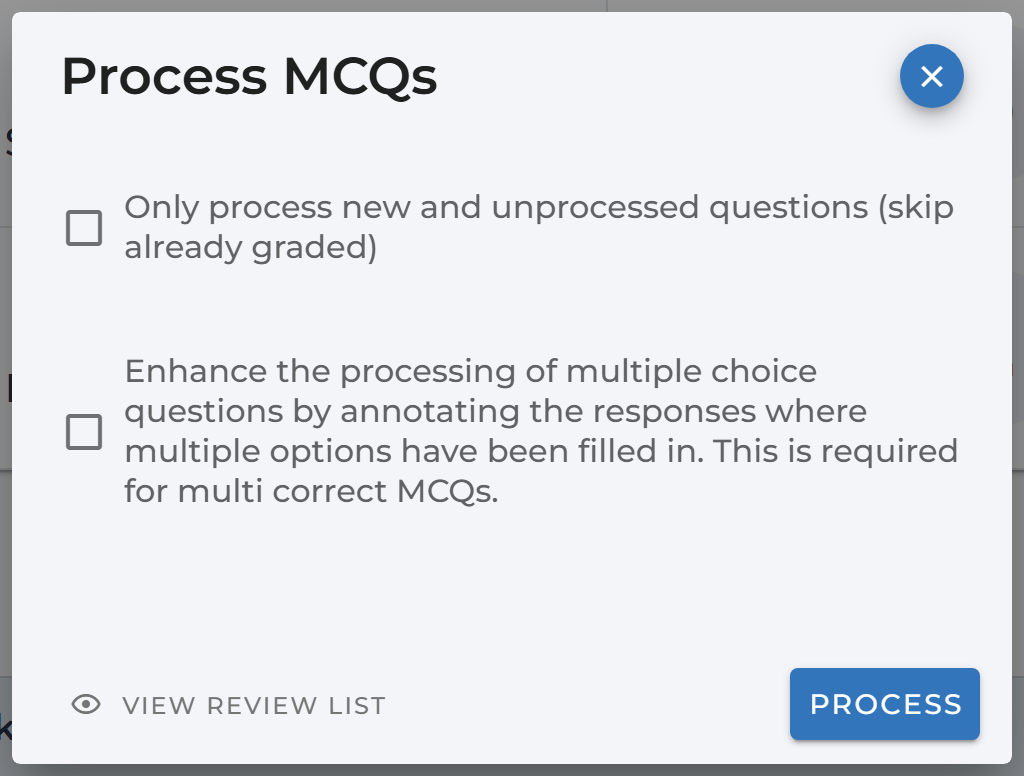
Two options are available before you click Process:
- Only process new and unprocessed questions — skip papers that are already marked, so you can safely re-run processing after uploading a few late scans without re-grading everyone.
- Enhance the processing of multiple choice questions… — turns on the improved bubble-detection pipeline, which cross-checks two independent detection methods against each other and flags anything ambiguous for manual review instead of guessing. This option is required if you are using Multiple correct (Beta) mode — without it, multi-bubble answers cannot be flagged.
When processing finishes, a results summary appears:
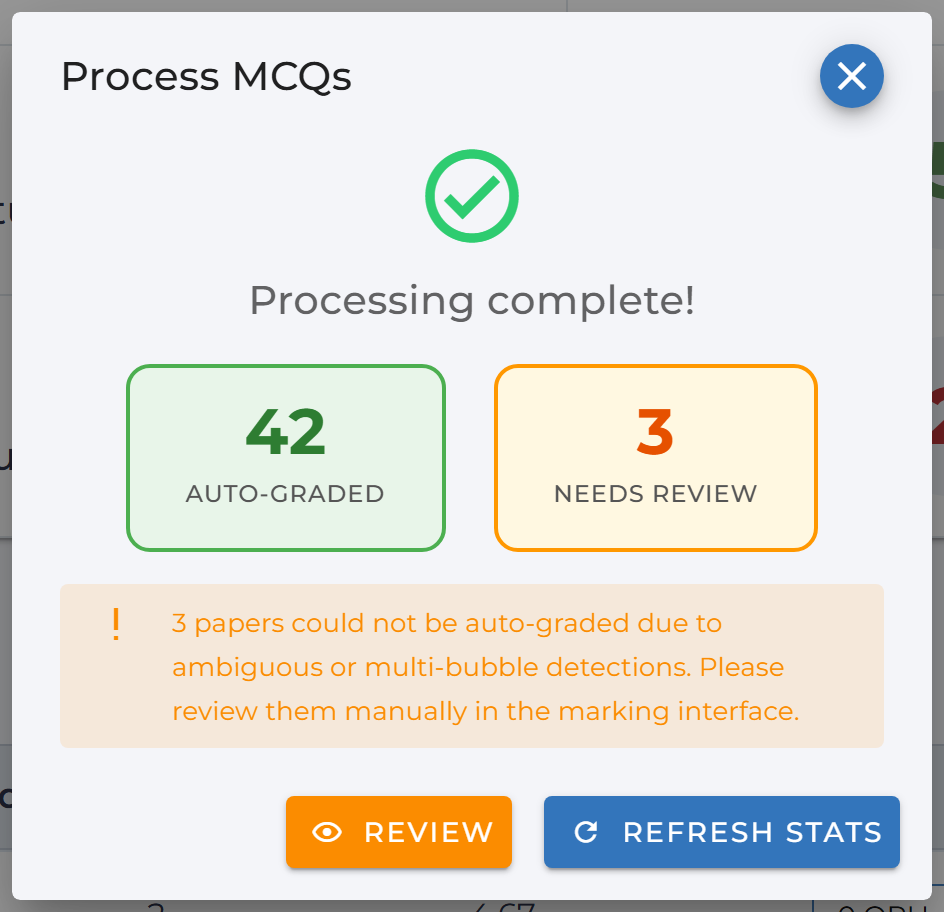
With enhanced processing on, papers are split into Auto-graded (scored immediately) and Needs review (flagged for a quick manual check — see the next section). Every processed page is also annotated: each bubble is outlined in green (counted) or red (not counted), with the awarded points printed beside it, and any question with a detection problem gets a yellow box around the whole row so it’s easy to spot on the scanned image.
Manually Reviewing Flagged Papers
A question is sent to manual review when the scanner detects more than one filled bubble, or when its two independent detection passes disagree with each other. Reviewed papers keep a provisional score but stay Unmarked until you confirm them. Click Review on the results summary, or View Review List from the Process MCQs dialog, to open the MCQ Manual Review page:
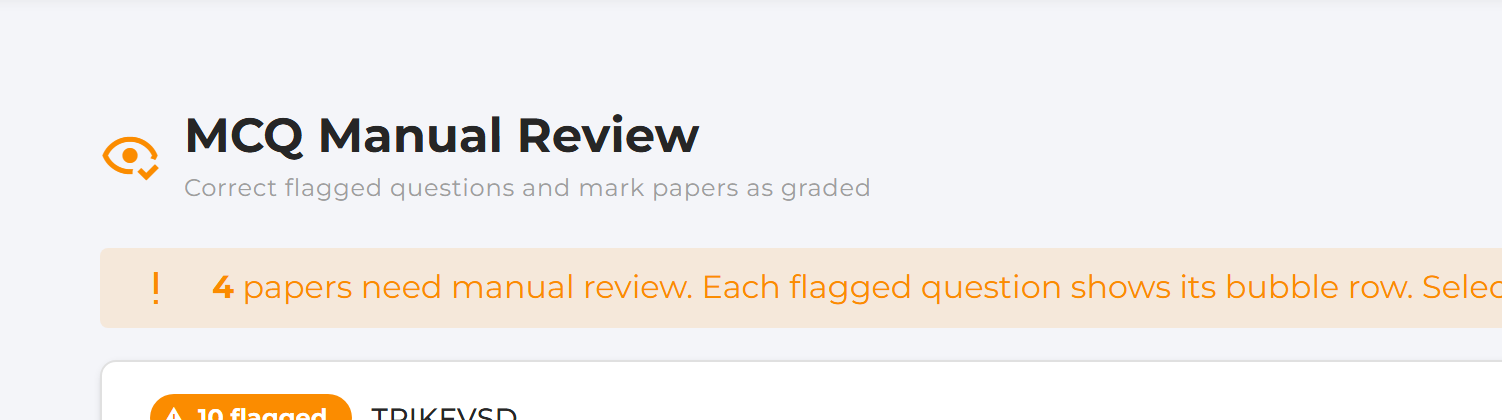
Each flagged paper is a collapsible panel labelled with its exam ID and a count of flagged questions (plus a multi-bubble chip if any question had more than one bubble filled). Expand a panel and, by default, you’ll only see the questions that actually need attention — a zoomed-in crop of that exact bubble row from the student’s real scanned sheet, so you don’t have to hunt through the whole page:
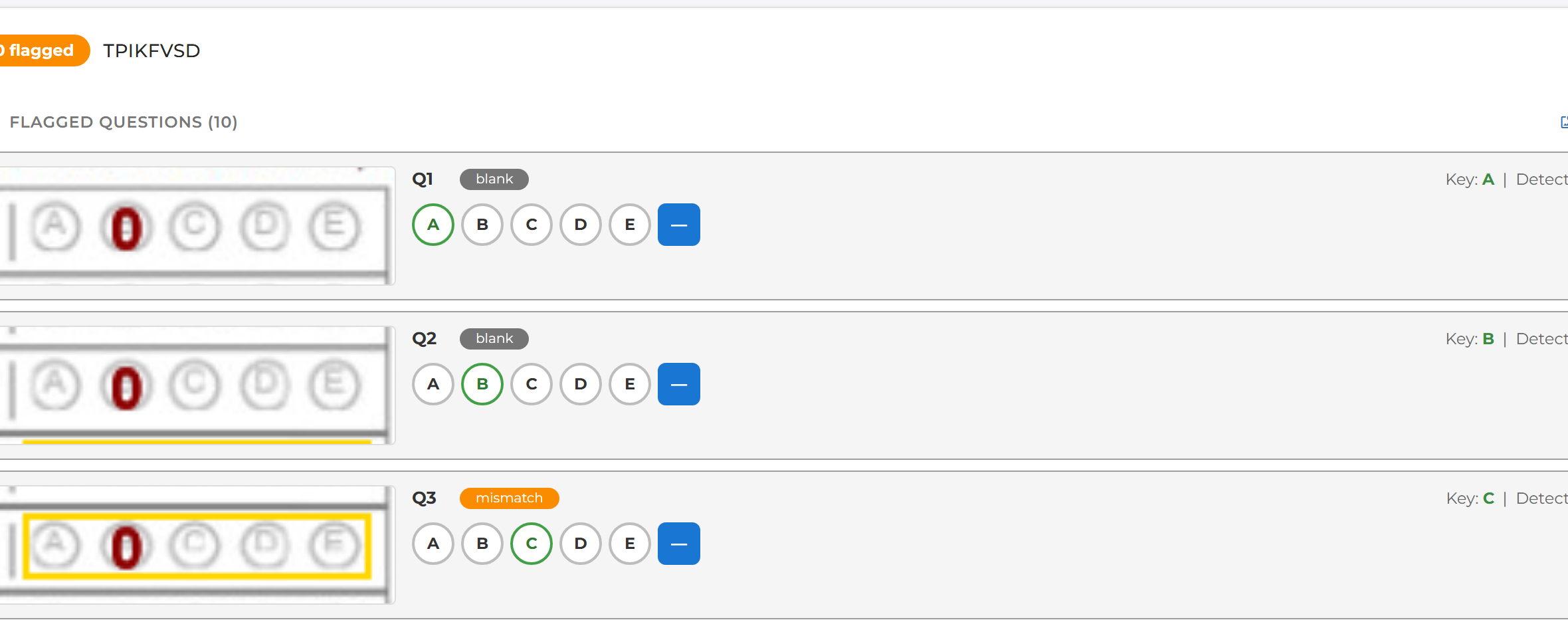
For each flagged question you’ll see the zoomed snippet, a mismatch, multi-bubble, or blank chip explaining why it was flagged, and the key vs. detected vs. currently-selected answer. Use the A B C D E — buttons to correct the recorded answer (— marks it blank), or click Accept to confirm the scanner’s own detected answer if, after looking at the snippet, it was actually right. A Show all questions toggle lets you check every question on the paper, not just the flagged ones, and View full sheet opens the complete annotated scan in a lightbox for extra context.
As you make corrections, an Estimated score recalculates live at the bottom of the panel:

Click Save & Mark Graded to lock in the score and finalize the question’s status as Marked — the panel then shows a green Graded ✓ badge and automatically advances to the next unresolved paper, so you can work through a whole batch of flagged papers quickly.
Item Analysis and Statistics Reports
Assign2 builds a full psychometric item-analysis report for every multiple-choice question. Reach it via View Item Analysis from the question’s histogram chart, or directly from the Assessment Details table. The report opens on the main Item Analysis tab, showing difficulty and discrimination indices per item alongside the distribution of responses (with the correct answer highlighted):
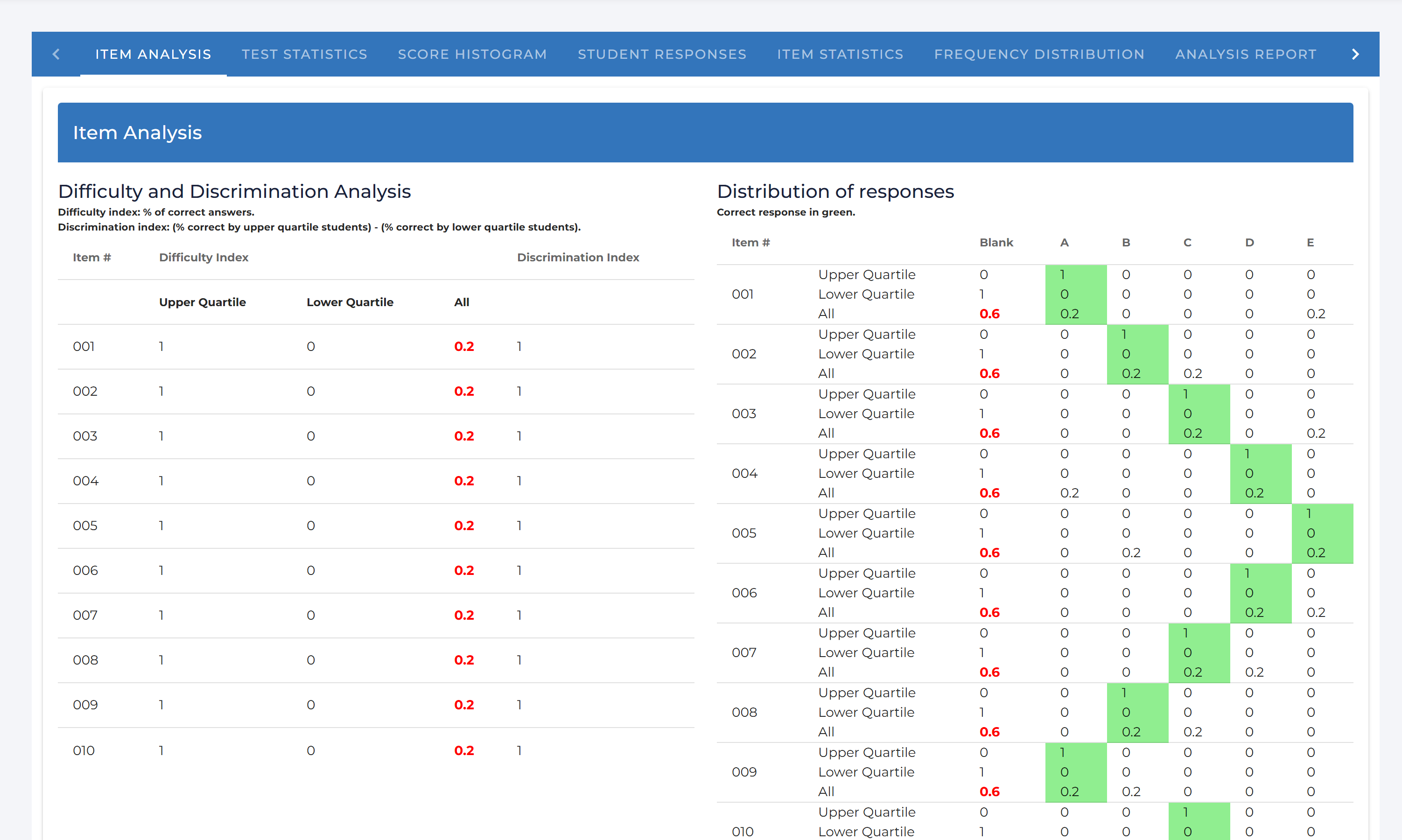
Along the top of the page, a full set of dedicated report tabs is available: Test Statistics, Score Histogram, Student Responses, Item Statistics, Frequency Distribution, Analysis Report, Student Statistics, Student Achievement, Condensed Item Analysis, Detailed Item Analysis, and Condensed Test Report. A few highlights:
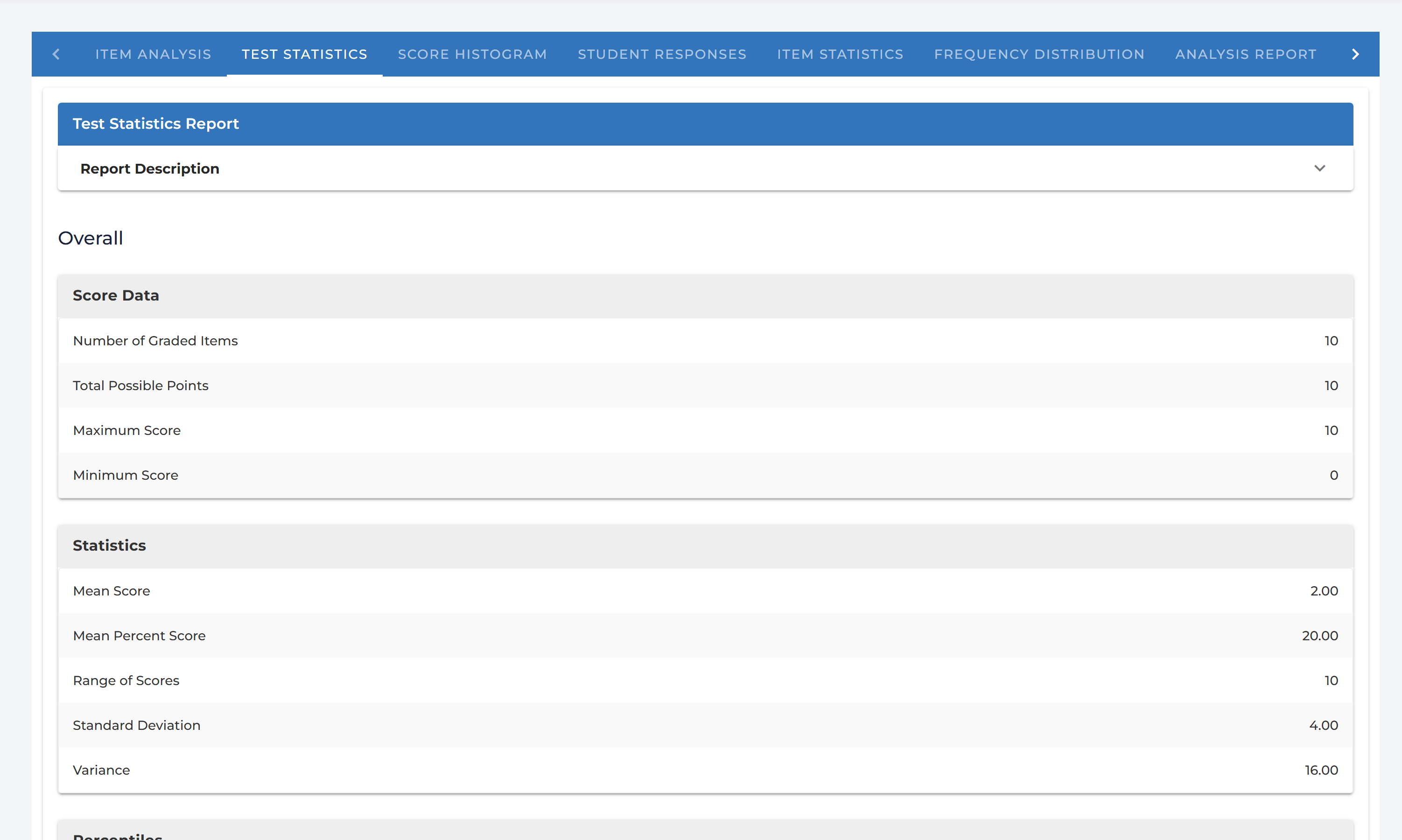
Test Statistics summarises the whole assessment — number of graded items, mean/median/range, standard deviation and variance, and percentiles.
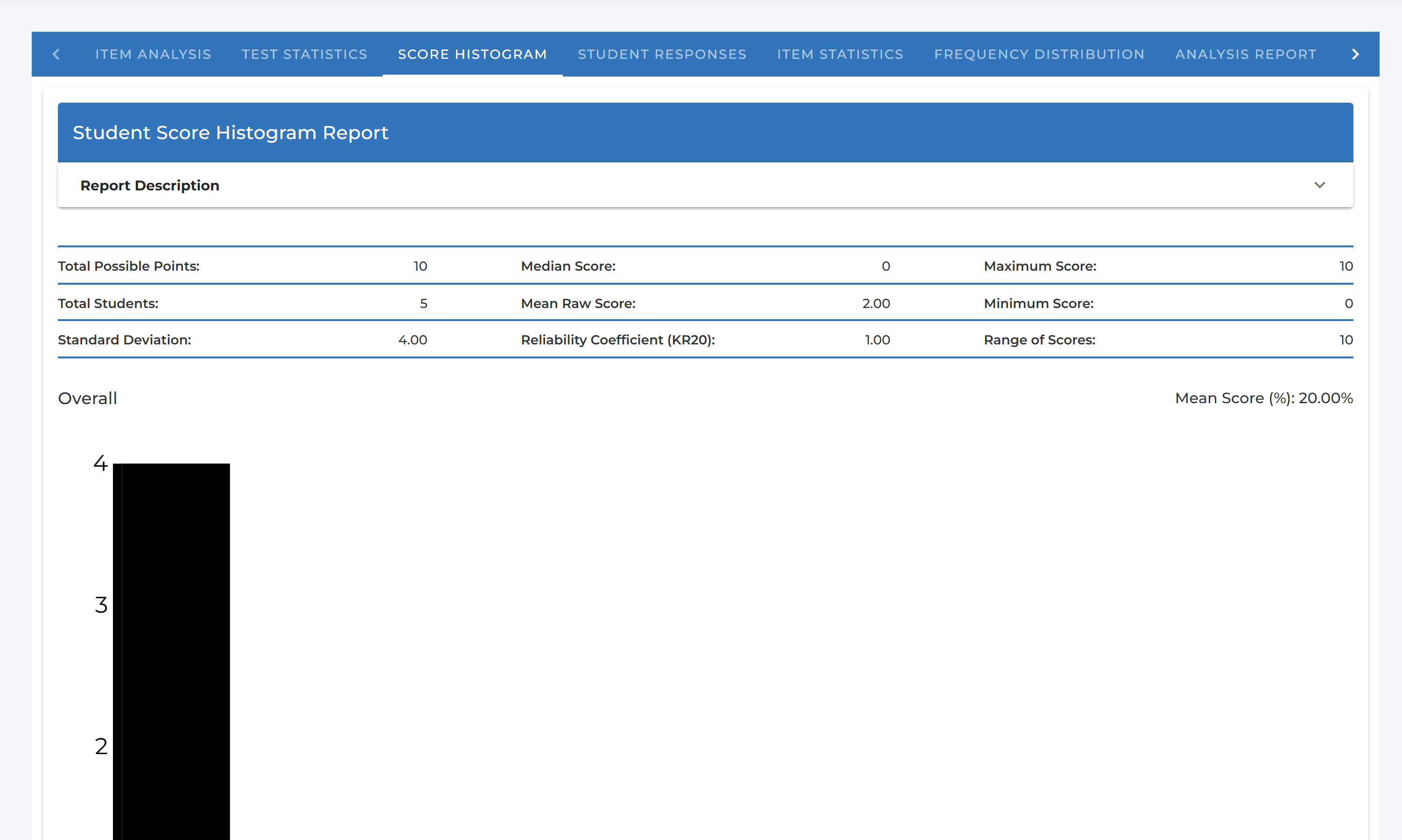
Score Histogram plots the distribution of scores across the class and reports the reliability coefficient (KR-20).
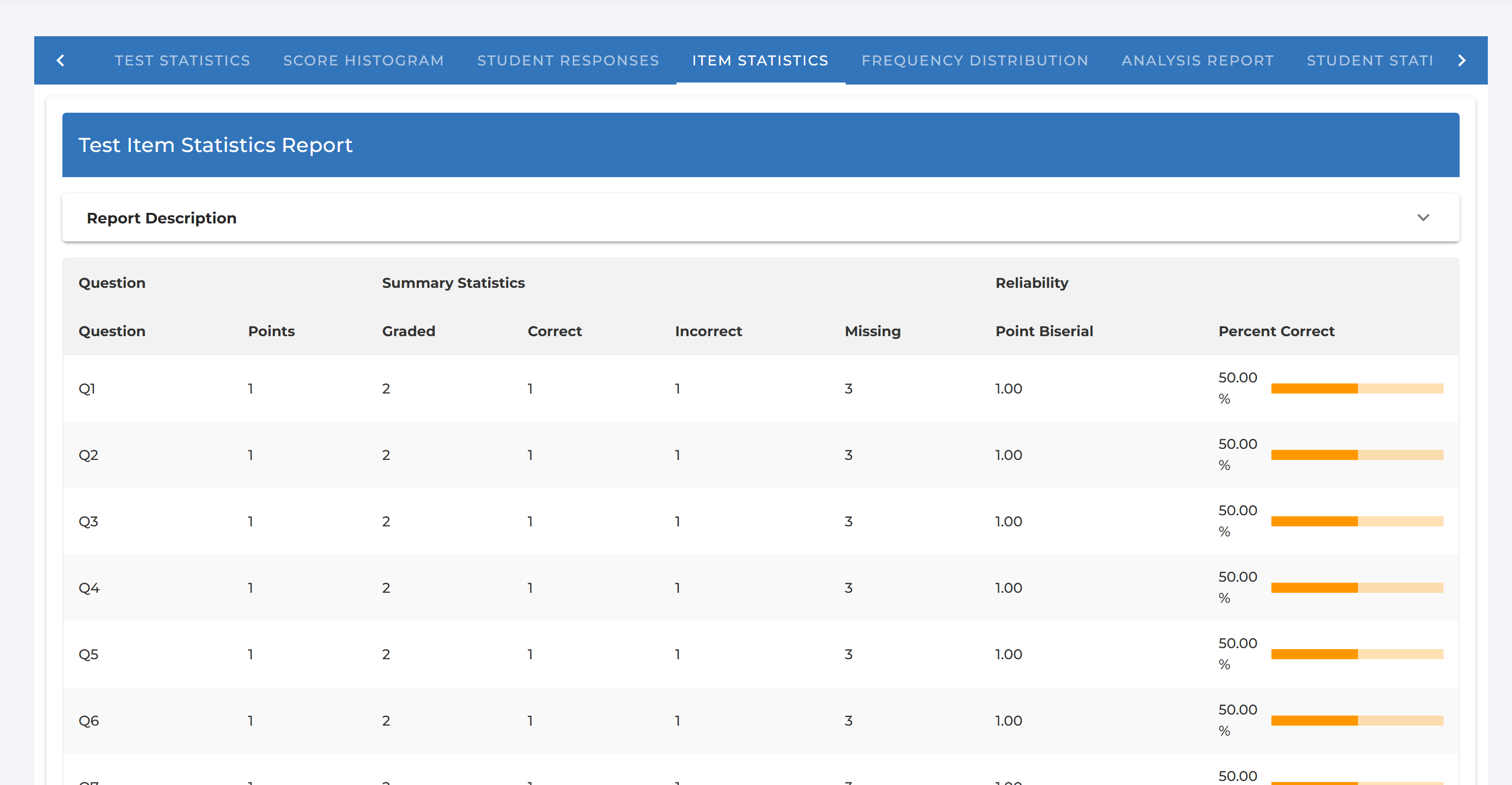
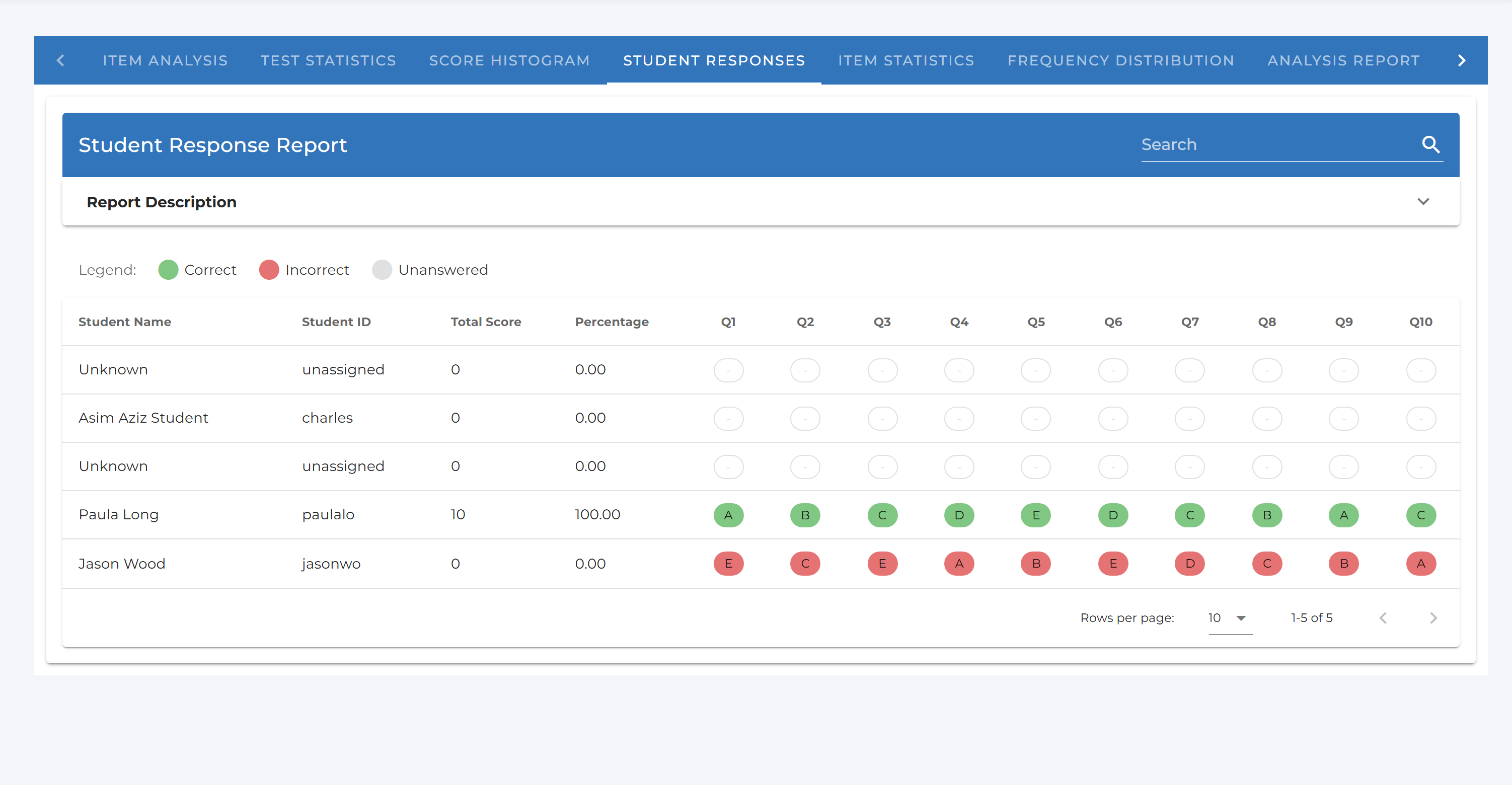
Item Statistics lists per-question point-biserial correlation and percent-correct, useful for spotting individual questions that may need revising, and Student Responses gives you a colour-coded, searchable grid of every student’s answer to every question:
Every report includes a collapsible Report Description panel explaining exactly how its figures are calculated, and the Item Analysis tab includes Download Item Scores / Download Raw Answers buttons for exporting the underlying data as CSV.
Benefits Over Traditional Bubblesheets
- Cost-Effective: Use standard paper and any document scanner. No need to purchase expensive, proprietary bubble sheets or dedicated scanners.
- Flexible: Easily mix multiple-choice pages with long-form written questions in the same exam booklet, and choose between simple single-answer keys or weighted partial-credit keys.
- Self-Checking: Enhanced processing automatically flags ambiguous or multi-bubble papers for a quick manual check instead of silently mis-scoring them.
- Integrated: All grading and analytics are in one place, with a full psychometric item-analysis suite — difficulty, discrimination, point-biserial, reliability, and more — built in for your multiple-choice questions, just as for written questions.
- Digital Record: A digital, annotated copy of every student’s exam is stored securely, so you can revisit exactly how each bubble was scored.